HOW TO ADD/EDIT CALENDAR SPOTS
Documentation types
Once logged in, on the dashboard, go to add area and select area you’d like to add/edit calendar spots. Save the area or update if area existed.
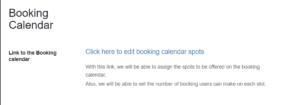
A booking calendar link will appear once area is saved or updated:
 l
l
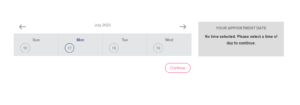
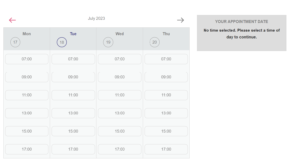
This is how the calendar appears on the front end before adding booking spots:
Click on the link to open the booking calendar page:
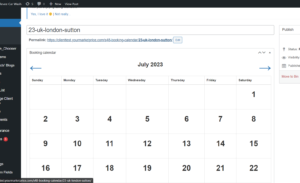
On the daily spot times section, assign daily slots by selecting time of day and clicking the “Add Daily Spot “button. You can add as many as you want.

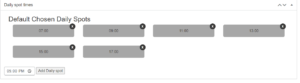
This will be the default daily spots, meaning, each day will show the spots assigned. This is how the calendar appears on the front end after assigning spots:
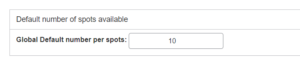
Use the global default number per spot to determine the number of spaces per spot. For example if value is set to 10,this means that each time can be booked up to 10 times.
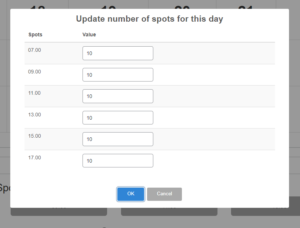
To override the default number of spots for a certain day, click on the date on the calendar, it will show the default number of spots per time as the image below.
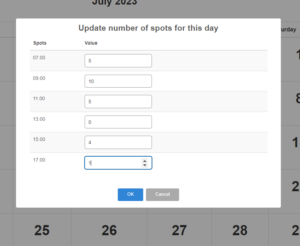
You can edit the value for each time for the specific date and click OK.
Click “Update” button when done with all changes to save.