HOW TO ADD A SITE ITEM
Documentation types
Navigate to https://yourmarketprice.com/wp-login.php
Enter your credentials and click Log In

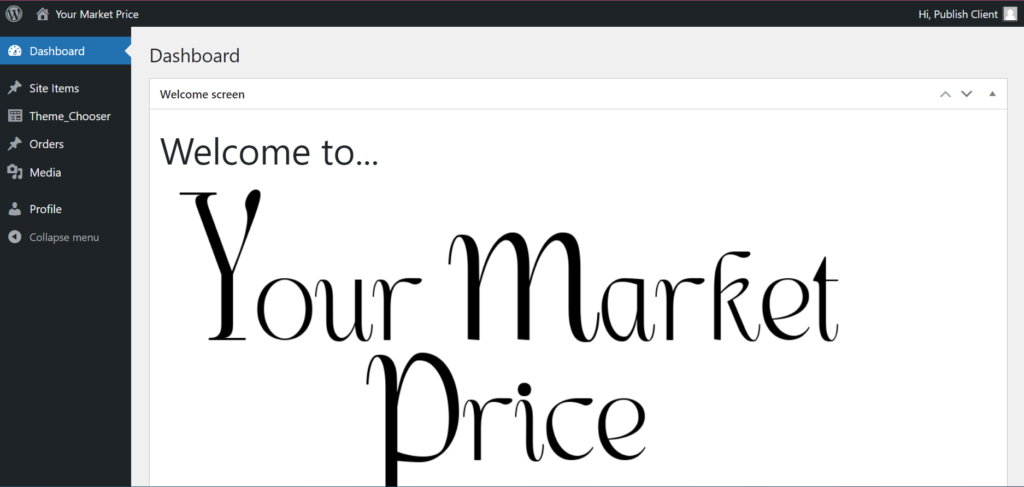
Once you log in, on the dashboard, click on site items, then add site items.
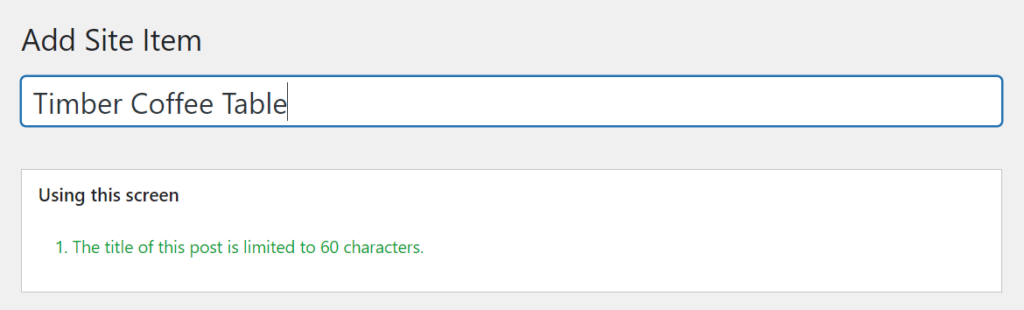
Click the “Add Title” Field and type in the title of your item.
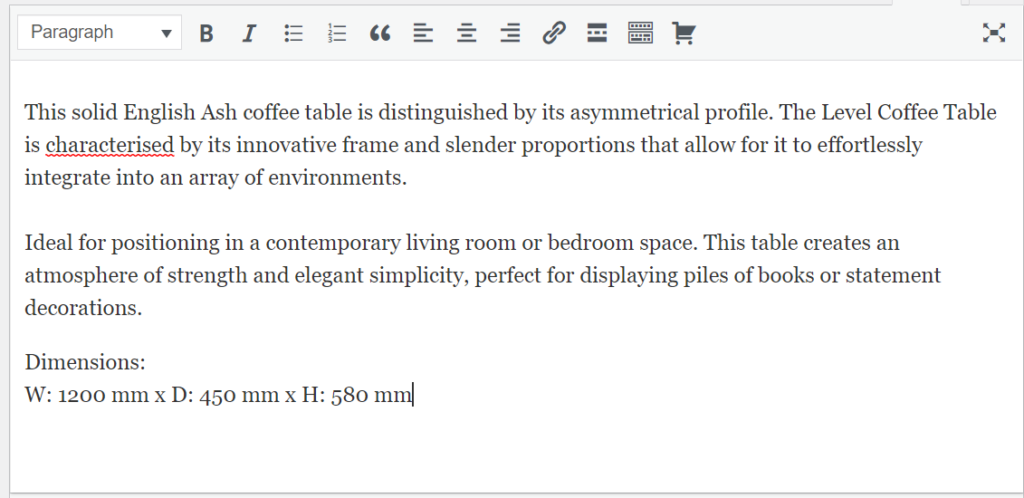
Click on “description” field. Here input the description of your item and any other information such as height length, weight etc.
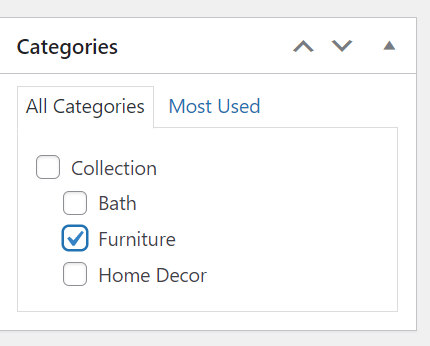
On the “Category” field on the left, choose the category under which your items falls in.
On the “Choose a specific shop” field, click the drop down arrow to choose the shop you are posting the item to.

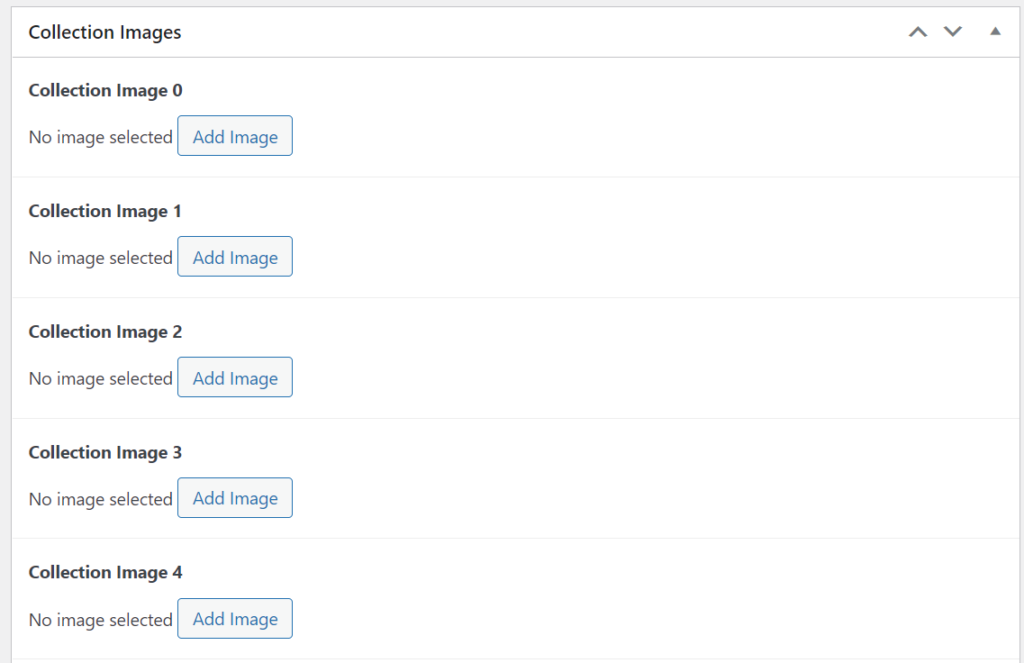
To add image/s of your item/product, use the “collection images” field. Click on “add image” to add media.
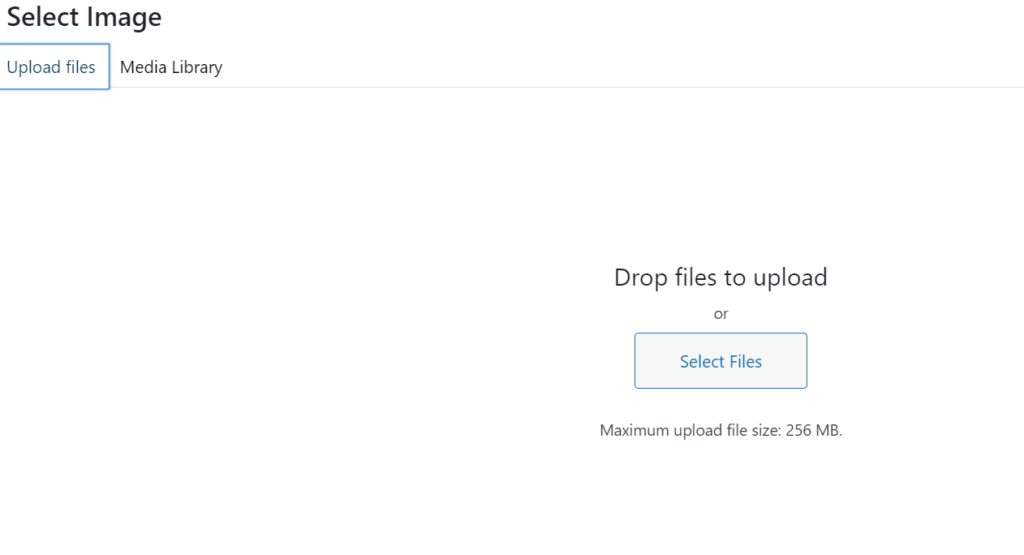
On the “select image” page, click on upload files and upload the images for the item.
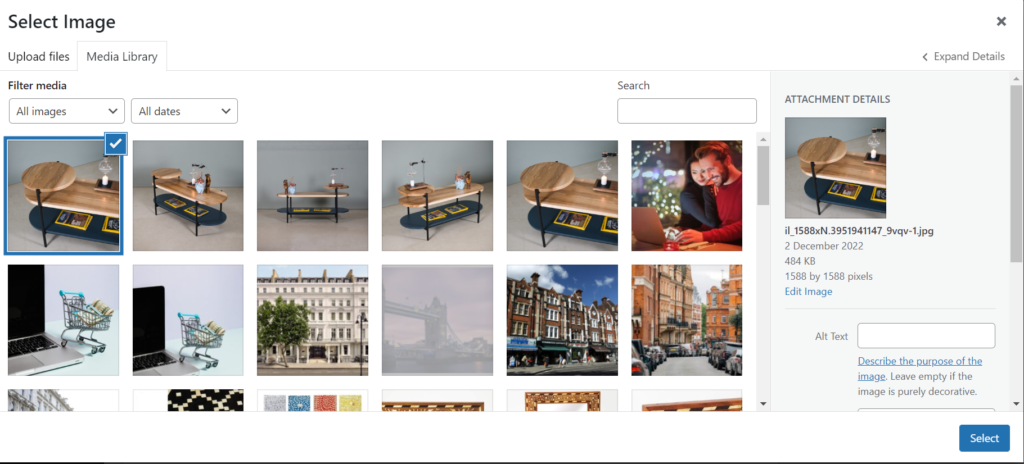
Once uploaded, on select image page, click select.
On the crop image crop, adjust the crop square to your liking and click crop. Your image will be added.
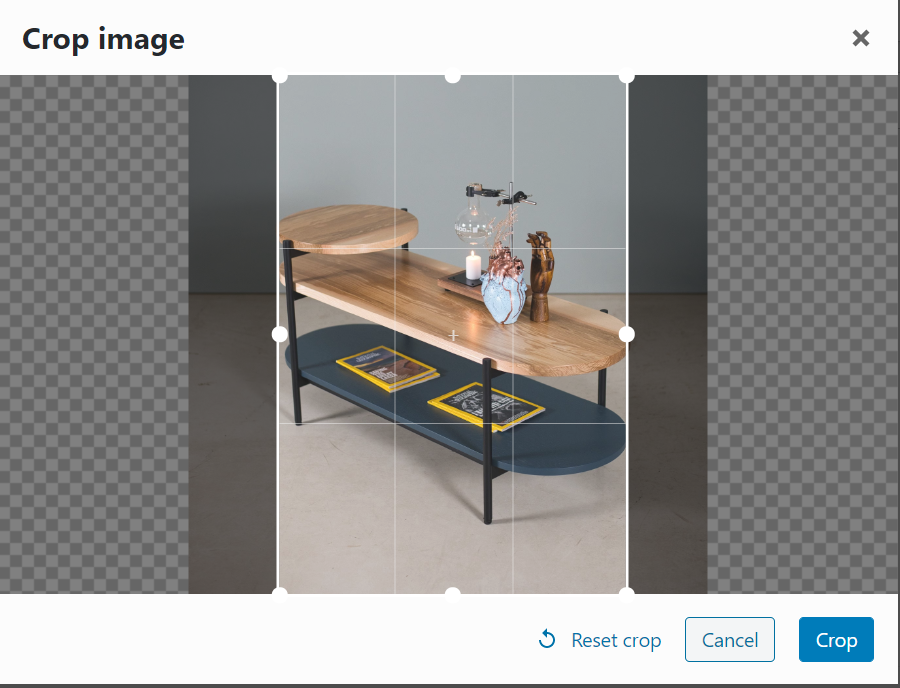
Repeat the steps to add more images as you desire. Note that you can add up to eight images.
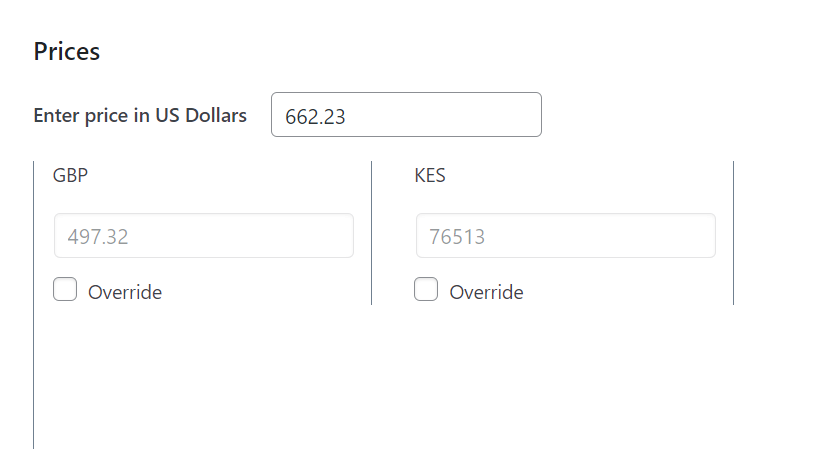
On the prices field, ender the price of item in US Dollars.
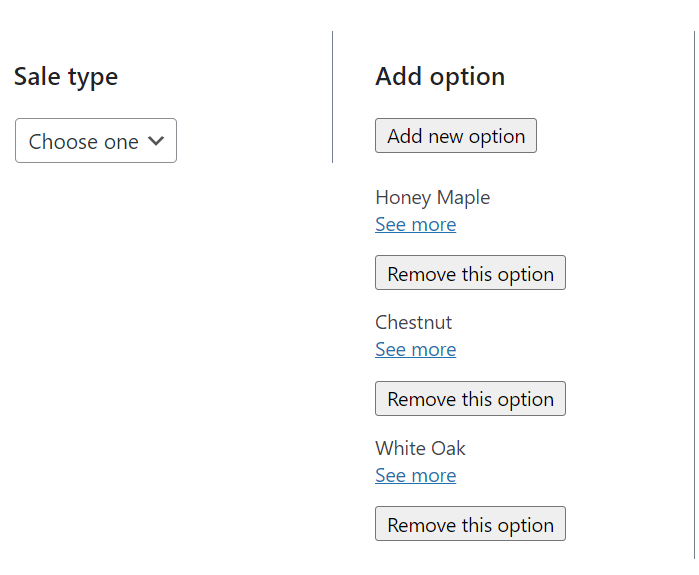
On the ” Add option” field, click on the add new option to add different options or variations that the item might have such as color, size etc.
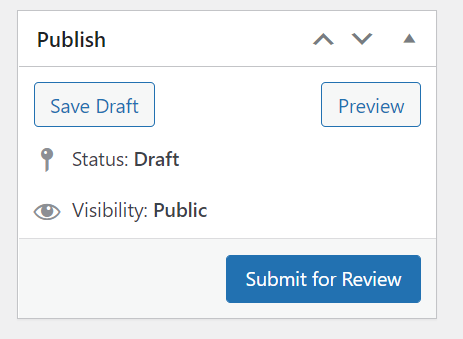
Once done with filling in the fields as needed and are satisfied with all information provided, on the “Publish” field, click on “Submit for Review” button for item to be reviewed and published.